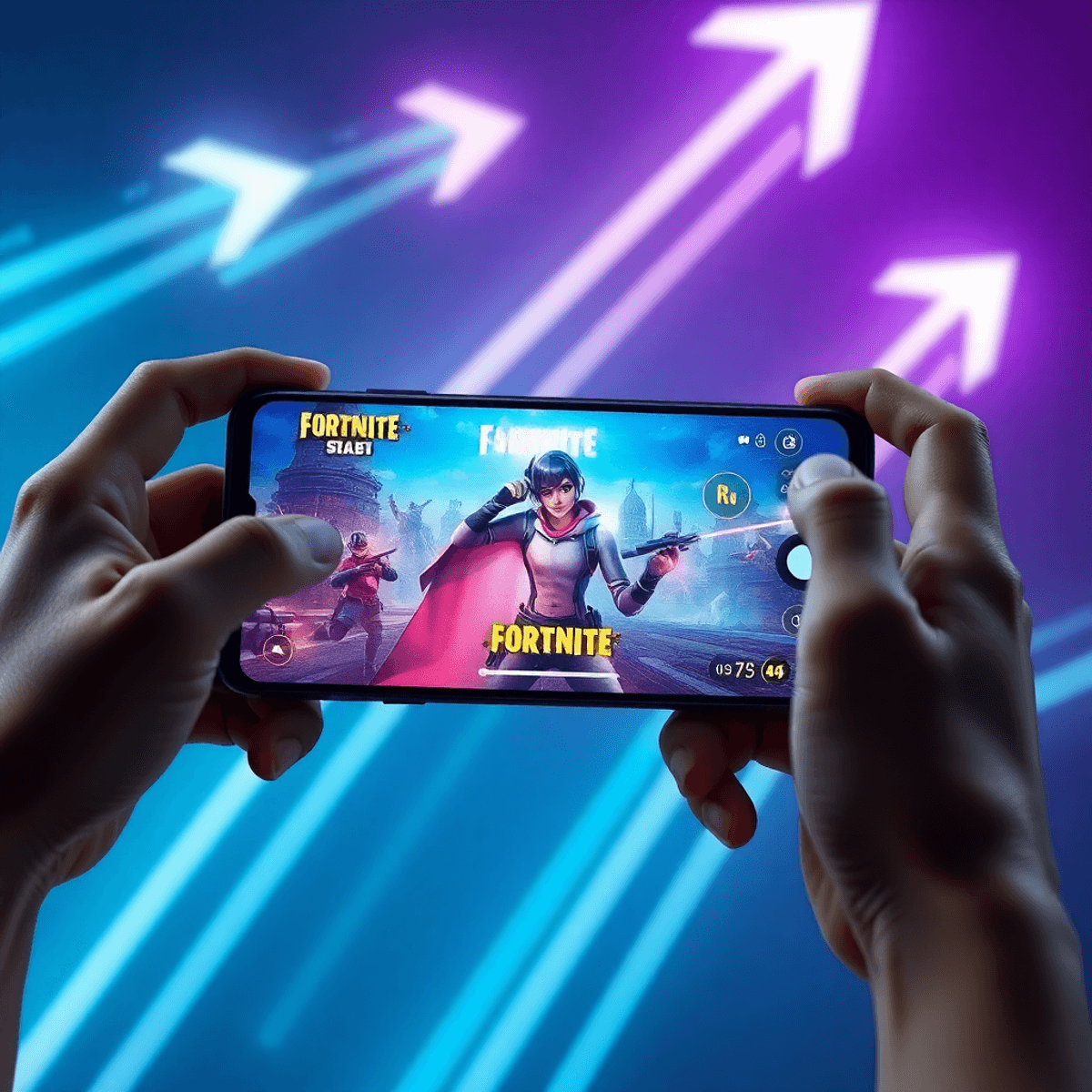
Free Fire MAX has quickly become a standout title in the battle royale game genre. Its enhanced graphics and immersive gameplay offer a richer experience compared to the original Free Fire. The game attracts millions of players worldwide, making it one of the most popular battle royale games on mobile platforms.
However, players using low-end devices often face significant challenges:
- These devices typically have limited RAM, weaker CPUs, and less capable GPUs.
- Such hardware limitations can lead to lag, frame drops, and overall choppy gameplay.
Running Free Fire MAX smoothly on these devices requires more than just launching the game. It demands careful adjustment of settings to balance visual quality with performance.
Using Free Fire MAX Ultra Smooth Settings for Low-End Devices is crucial for achieving a stable and responsive gaming experience. Optimizing these settings helps reduce strain on your device’s resources, minimizing interruptions during intense matches.
You can enjoy better gameplay by tailoring both in-game graphics and device configurations. This approach ensures that even low-end hardware can deliver satisfying performance without sacrificing too much visual clarity or responsiveness.
Understanding Low-End Device Limitations
Low-end hardware typically refers to devices with limited specifications that struggle to handle demanding applications like Free Fire MAX. Key restrictions include:
1. RAM Limitations
Many low-end devices come with 2GB or less RAM, which restricts the amount of data that can be processed simultaneously. Running resource-heavy games alongside background apps can quickly exhaust available memory, leading to slowdowns and crashes.
2. Processor Constraints
The CPU in budget smartphones often features fewer cores and lower clock speeds. This reduces the processing power necessary for managing complex game mechanics, physics calculations, and AI behavior smoothly.
3. GPU Capabilities
Graphics Processing Units in low-end devices lack the advanced architecture found in mid-range or flagship phones. Limited GPU power results in difficulty rendering high-quality textures, shadows, and effects without dropping frames.
These hardware limitations directly impact gaming performance by causing:
- Lag Spikes: Sudden drops in frame rate caused by insufficient processing speed or memory bottlenecks.
- Frame Drops: Inconsistent rendering where the game skips frames, making animations appear choppy.
- Longer Load Times: Increased delays when loading textures, maps, or character models due to slower data handling.
Default high-quality settings in Free Fire MAX are designed to utilize the full potential of powerful devices. Applying these presets on low-end hardware leads to:
- Overburdening the CPU and GPU with complex visual effects.
- Excessive RAM consumption from detailed textures and background processes.
- Thermal throttling as the device overheats trying to maintain performance under heavy load.
Adjusting settings specifically for ultra-smooth gameplay on low-end devices requires understanding these constraints. Lowering graphics quality and reducing resource-intensive features helps balance visual fidelity with playable frame rates. This approach prevents lag and ensures a more responsive gaming experience despite hardware limitations.
Optimizing In-Game Graphics Settings for Ultra Smooth Gameplay
When aiming for ultra smooth gameplay on low-end devices in Free Fire MAX, the first step is adjusting the graphics quality. Setting it to the “Ultra Smooth” preset significantly reduces the visual load on your device’s GPU and CPU. This preset strips down unnecessary details, allowing your device to focus its limited resources on maintaining a steady frame rate rather than rendering high-quality visuals.
Key adjustments to improve performance include:
- Graphics Quality: Switch from default or high settings to Ultra Smooth or the lowest available preset. This change alone can drastically reduce lag and frame drops.
- Shadows Off: Shadows are one of the most resource-intensive effects in games. Turning shadows off eliminates complex light calculations, freeing up GPU power and improving frame stability.
- Anti-Aliasing Disabled: Anti-aliasing smooths edges but requires extra processing power. Disabling it reduces GPU strain without severely impacting gameplay clarity on smaller screens.
- Texture Quality: Lower texture quality settings help decrease the amount of memory used by your GPU. High-resolution textures look better but consume more VRAM, which low-end devices often lack.
- High-Resolution Textures: If your device struggles even with lowered texture quality, disable high-resolution textures completely. This step is crucial for preventing stuttering and overheating caused by excessive GPU workload.
These settings work together by prioritizing performance over visual fidelity. You trade off some graphic sharpness and detail for smoother gameplay, which is essential when your hardware cannot keep up with demanding effects.
Experiment with combinations of these settings based on your specific device’s capabilities. For example, if turning off shadows causes minor visual discomfort but greatly improves frame rate, it’s a worthwhile adjustment. Similarly, disabling anti-aliasing might make edges look jagged but will help maintain responsiveness during intense battles.
Fine-tuning these graphics options ensures you get the best possible experience from Free Fire MAX on low-end hardware, keeping gameplay fluid and enjoyable without constant lag interruptions.
Adjusting Frame Rate and Resolution Settings
Managing frame rate adjustment and game resolution reduction plays a critical role in achieving Free Fire MAX Ultra Smooth Settings for Low-End Devices. These settings directly influence how your device’s GPU handles the game, affecting both performance and visual clarity.
Lowering Frame Rate Settings
While a higher FPS (frames per second) can make gameplay feel smoother, it demands more from your CPU and GPU. If you notice instability such as frequent frame drops, overheating, or battery drain, reducing the frame rate to 30 FPS or even 24 FPS can stabilize performance. This prevents excessive stress on the hardware, ensuring longer gaming sessions without lag spikes.
Recommended Game Resolutions
Free Fire MAX offers options to modify resolution, a powerful method to ease GPU load. Common resolutions like 800×600 or 1024×768 are popular choices among players with low-end devices. These resolutions lower the number of pixels rendered each frame, cutting down GPU workload substantially. By selecting these reduced resolutions, you trade some detail for much-needed smoothness.
Balancing Visual Clarity and Performance
Dropping resolution too far may cause the game to look blurry or pixelated, which can affect aiming and spotting enemies. Experiment with intermediate values between default and lowest available settings to find a sweet spot where visuals remain acceptable but performance improves noticeably. For example:
- Start at 1024×768 for clearer visuals with decent smoothness
- Step down to 800×600 if lag persists or device heats up
- Avoid going lower than recommended presets as it might degrade gameplay experience excessively
GPU load balancing through these adjustments helps maintain responsiveness without overwhelming the hardware. Keeping these factors in mind allows you to customize Free Fire MAX Ultra Smooth Settings suited precisely to your device’s capabilities, offering a competitive advantage by minimizing lag during intense battles.
Device-Level Optimizations for Enhanced Performance
Optimizing your device beyond the in-game settings can significantly improve Free Fire MAX gameplay on low-end hardware. Focus on these key device-level adjustments to maximize performance:
Background Apps Closure
Running multiple apps simultaneously consumes valuable RAM and CPU power, directly impacting gaming smoothness. Before launching Free Fire MAX:
- Close all unnecessary background applications such as social media, music players, or messaging apps.
- Use your device’s task manager or recent apps screen to swipe away unused programs.
- This frees up memory and processing resources that the game needs for stable frame rates and reduced lag.
Game Booster Mode
Many modern smartphones include a built-in game booster mode designed specifically to enhance gaming performance. Activating this feature helps by:
- Prioritizing CPU and GPU power allocation toward the game.
- Suppressing notifications and background processes that could interrupt gameplay.
- Optimizing network usage for lower latency.
Check your device settings or manufacturer’s app store for a dedicated game booster tool. If available, enable it before starting Free Fire MAX.
Battery Saver Off
Battery saver modes extend device uptime by reducing power consumption but often throttle CPU and GPU speeds. This throttling leads to:
- Lower frame rates.
- Increased input lag.
- Stuttering during intense gameplay moments.
Disable battery saver before playing Free Fire MAX to ensure the processor runs at full capacity. Keep an eye on battery levels if you choose this approach, especially during longer sessions.
Device Cooling Techniques
Thermal throttling occurs when your device overheats, causing automatic reduction of CPU/GPU clock speeds to prevent damage. To minimize overheating:
- Play in a well-ventilated area with ambient cool temperatures.
- Remove cases or covers that trap heat during gaming.
- Take short breaks if you notice excessive warmth.
- Avoid charging your device while playing, as charging generates additional heat.
Proper cooling maintains consistent performance and prevents sudden drops in frame rates caused by overheating.
Implementing these device-level optimizations alongside in-game settings adjustments ensures you get the most stable and fluid gameplay experience possible on low-end devices.
Updating Software and Drivers for Compatibility and Stability
Keeping your device’s operating system (OS) and drivers up to date plays a critical role in achieving smooth gameplay in Free Fire MAX, especially on low-end devices. System updates often include software optimization improvements that directly impact game performance and stability.
1. System Updates
Manufacturers regularly release OS updates aimed at improving overall device efficiency. These updates often contain optimizations for memory management and CPU scheduling, which help games run more fluidly.
Bug fixes included in these updates can resolve issues causing crashes or excessive heating—common problems on older hardware.
Updated systems tend to have better compatibility with the latest versions of games, preventing unexpected errors during gameplay.
2. Driver Updates
Graphics drivers control how your GPU communicates with the game. Outdated drivers may not support new rendering techniques or may fail to handle resource allocation efficiently.
Keeping GPU drivers current ensures Free Fire MAX can leverage hardware acceleration features designed to boost frame rates without stressing the device unduly.
Some driver updates specifically target improved power consumption and heat management, helping reduce thermal throttling during extended gaming sessions.
3. Software Optimization
Aside from OS and drivers, updating the game itself is crucial. Developers roll out patches that optimize resource usage, fix bugs affecting performance, and enhance network stability.
Optimized software can reduce CPU/GPU load by refining background processes or adjusting graphical demands based on detected hardware capabilities.
Regularly checking for and installing these updates can dramatically improve your gaming experience by ensuring Free Fire MAX runs as efficiently as possible on your device. Neglecting this aspect often leads to persistent lag, crashes, or overheating—issues that no amount of in-game setting tweaking alone can fully fix.
Network Optimization Tips for Lag-Free Gameplay
A stable internet connection is essential to maintain smooth gameplay in Free Fire MAX, especially when using low-end devices. Network lag can disrupt your experience, causing delays and missed opportunities during critical moments.
Ensuring a Stable Connection
- Prefer Wi-Fi over mobile data when possible. A reliable Wi-Fi network typically offers lower latency and more consistent speeds compared to cellular connections.
- If Wi-Fi is not an option, use fast 4G or 5G mobile data with strong signal strength to reduce interruptions.
- Avoid playing in areas with weak signals or frequent disconnections.
Reducing Network Lag
Network lag spikes often stem from bandwidth competition and unstable connections. Use these simple measures to minimize lag:
- Pause or stop downloads and uploads on your device before starting Free Fire MAX. Background data usage can consume bandwidth and increase latency.
- If other devices share the same network, try to limit their heavy internet usage like streaming videos or large file transfers during your gaming session.
- Restart your router regularly to refresh the connection and clear potential bottlenecks.
- Consider using a wired Ethernet connection if your device supports it via adapters; this can provide a more stable and faster link than wireless.
Additional Tips for Network Stability
- Enable any Quality of Service (QoS) settings on your router that prioritize gaming traffic. This can significantly enhance your gaming experience by reducing lag and improving connection stability. For a deeper understanding of how QoS works and its benefits, you can refer to this comprehensive guide on QoS.
- Use lightweight DNS servers such as Google DNS (8.8.8.8) or Cloudflare DNS (1.1.1.1) for potentially faster domain lookups.
- Monitor your network speed with apps or websites before starting the game to ensure you meet minimum requirements for Free Fire MAX.
Optimizing your internet connectivity complements in-game settings and device tweaks, making a noticeable difference in achieving Free Fire MAX Ultra Smooth Settings for Low-End Devices without disruptive lag or latency issues.
Additional Gameplay Tweaks for Responsiveness on Low-End Devices
Achieving ultra-smooth gameplay in Free Fire MAX goes beyond graphics and system settings. You can enhance input responsiveness significantly by tweaking sensitivity and control layouts. These adjustments reduce the processing burden on low-end devices while improving your in-game performance.
Sensitivity Adjustment
- Lower sensitivity settings help improve aiming precision without demanding excessive processing power from your device.
- High sensitivity can cause jittery movements that require more frequent CPU and GPU calculations, which may lead to lag or delayed input response.
- Experiment with gradually reducing your sensitivity until you find a balance that feels smooth and accurate but doesn’t strain your hardware.
- Consider using separate sensitivity levels for different scopes or aiming modes; this targeted approach optimizes responsiveness where it matters most.
Control Layout Customization
Customizing your control layout not only allows you to place buttons and joysticks within easy reach, minimizing finger movement and improving reaction time, but also helps in enhancing overall gameplay experience. Here are some key points to consider:
- On slower devices, simpler layouts reduce the chance of input lag caused by complex multitouch gestures.
- Use smaller or more compact controls to prevent mis-taps, which can disrupt gameplay flow and force repeated inputs.
- Some players find benefit in disabling unnecessary gesture controls or extra UI elements that consume processing resources during gameplay.
- Utilizing tools such as Bootstrap forms for control layout customization can streamline the process, making it easier to set up an optimal layout.
Impact on Input Responsiveness
Adjusting sensitivity and customizing control layouts work hand-in-hand to ensure smoother interaction between you and the game. When input responsiveness improves:
- Your actions translate faster on screen, making aiming, shooting, and moving feel more natural.
- Reduced input delay lowers frustration caused by missed shots or slow reactions.
- The device’s CPU and GPU load decrease slightly because it processes fewer erratic inputs.
Fine-tuning these settings based on your device’s capability creates a noticeable difference in how fluidly you can play Free Fire MAX without pushing hardware limits too far.
Conclusion
Mastering Free Fire MAX Ultra Smooth Settings for Low-End Devices requires a combination of strategic in-game adjustments and careful device-level optimizations. Key steps include:
- Setting graphics quality to Ultra Smooth or the lowest preset to reduce GPU strain.
- Disabling shadows, anti-aliasing, and high-resolution textures to lighten processing load.
- Adjusting frame rates and resolution to find the best balance between clarity and smoothness.
- Closing background apps and disabling battery saver modes to free up hardware resources.
- Utilizing game booster features and maintaining proper device cooling to prevent performance drops.
- Keeping your device’s software and drivers updated for improved compatibility.
- Ensuring a stable network connection to minimize lag during gameplay.
- Tweaking sensitivity settings and customizing control layouts for better responsiveness.
Maintaining an effective balance between graphical fidelity and smooth performance is crucial for low-end hardware. High-quality visuals often come at the cost of stuttering or overheating, so prioritizing fluid gameplay enhances your overall experience.
Experimentation plays a vital role. Each low-end device has unique capabilities, making it important to test various settings combinations. Adjustments that work well on one phone may not yield the same results on another. Fine-tuning these options based on your specific device ensures you achieve the best possible performance without sacrificing too much visual appeal.
By applying these practices, you can enjoy a smoother, more responsive Free Fire MAX experience even on devices with limited hardware power.
FAQs (Frequently Asked Questions)
What are the main challenges faced by Free Fire MAX players using low-end devices?
Players using low-end devices face hardware limitations such as restricted RAM, processor constraints, and limited GPU capabilities. These restrictions often cause lag, frame drops, and unstable gameplay, making it essential to optimize settings for smoother performance.
How can I optimize in-game graphics settings for ultra smooth gameplay on Free Fire MAX with a low-end device?
To achieve ultra smooth gameplay on low-end devices, set the graphics quality to the ‘Ultra Smooth’ preset or the lowest available setting. Disable resource-heavy effects like shadows and anti-aliasing, and adjust texture quality to reduce GPU load.
What frame rate and resolution settings should I use for better performance in Free Fire MAX on low-end hardware?
Lowering the frame rate can prevent instability or overheating. Recommended resolutions such as 800×600 or 1024×768 help balance visual clarity with smoother gameplay by reducing GPU load on low-end devices.
Which device-level optimizations can enhance Free Fire MAX performance on low-end smartphones?
Closing unnecessary background apps frees up RAM and CPU resources. Utilizing built-in game booster modes prioritizes gaming performance. Disabling battery saver modes prevents CPU/GPU throttling, and ensuring proper device cooling avoids thermal throttling during extended play sessions.
Why is it important to keep my device’s software and drivers updated when playing Free Fire MAX?
Keeping your operating system and drivers updated ensures optimal game compatibility, fixes bugs, and improves resource management on older hardware, leading to more stable and smoother gameplay experiences.
How can I reduce network lag for a better Free Fire MAX experience on low-end devices?
Using a stable Wi-Fi connection or fast mobile data minimizes network latency and lag spikes. Additionally, avoiding downloads or heavy internet usage while playing helps maintain a stable network connection for lag-free gameplay.